
What to Check When a Morse WAV Gives No Text
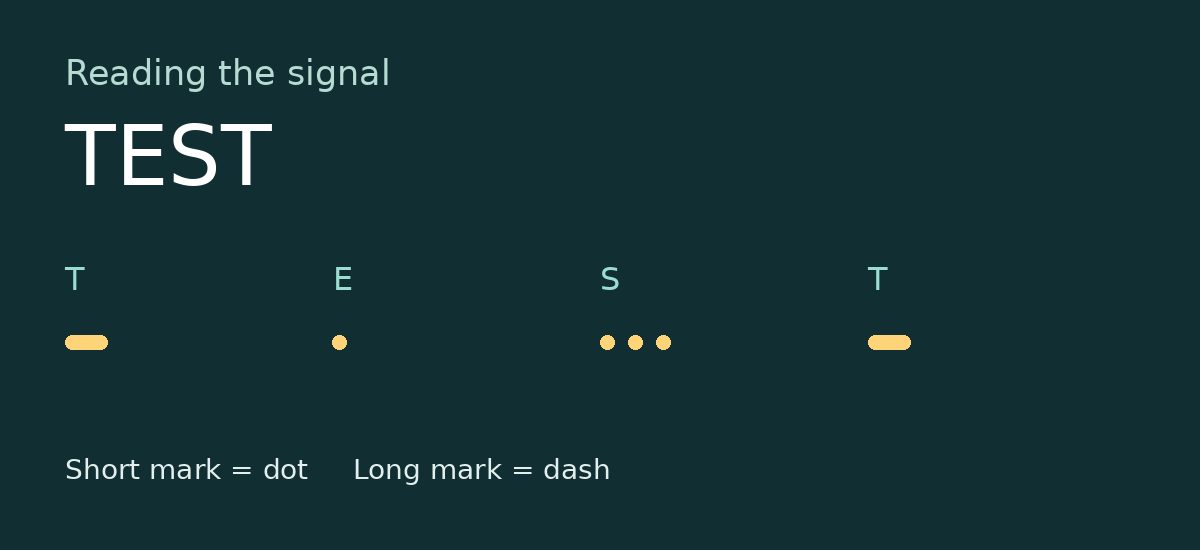
Start with a recording whose message you know. Export TEST from the translator and select that file in the decoder. This gives you a comparison before you troubleshoot an unfamiliar recording.
Check the file and its contents
The current decoder accepts PCM WAV. Renaming an MP3 file with a WAV extension does not convert its audio. If the decoder reports silence, play the file in a local player. Check whether you can actually hear separate short and long tones with quiet gaps between them.
Change one variable
If the known TEST file works, compare it with the difficult recording. Does music continue during the gaps? Does the recording begin halfway through a letter? Either observation is worth noting before trusting a result. The reported checks cover files generated by this translator. For an outside recording, keep the recovered marks alongside the text so you can review uncertain letters.
A silent PCM WAV produces “This recording is silent. There is no Morse code to decode.” A file that is not PCM WAV produces “This file could not be read. Choose a PCM WAV file.” Choose the file, then press Decode. The page shows the recovered Morse and the text only after a file has been decoded.